In the Prescribe Medication dialog, click the
Medication History button.
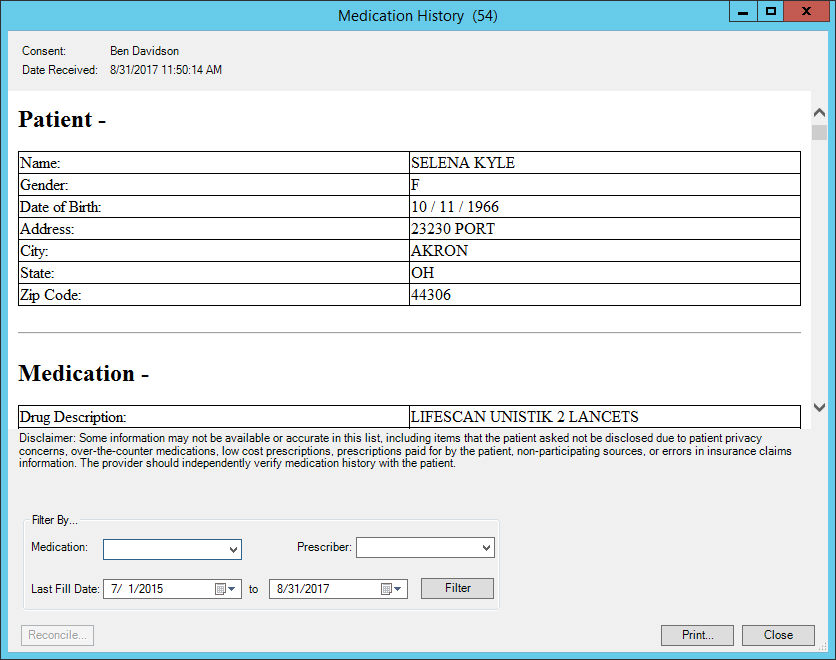
In the Medication History dialog, the patient
basic demographic information will be listed, along with medication history
for that patient. Beside the Medication History title, at the top of the
dialog, the number of medication occurrences will appear in parentheses.
When accessing the Medication History dialog, you may first receive
a series of dialogs indicating that the system is gathering the information,
or that the Medication History is pending for the patient. Likewise, you
may also receive dialogs that indicate that there is no history information
available for the patient, or that history information could not be retrieved.
Typically, if you try back after a few minutes the medication history
will be available.
NOTE: When retrieving medication history via the Prescribe Medication
dialog, you are unable to reconcile or import medications. To reconcile
and import medications from the medication history from the SureScripts
Network you need to access the Medication History dialog via Chart
> Medication History
when in the patient's chart.
In the Filter By section, at the bottom of the
dialog, select any Medication,
Prescriber, and/or Last
Fill Date range you would like to filter the medication history
for, as needed, and then click the Filter
button.
You can then view the medication by scrolling
through the Medication section, or print the medication history. When
printing, only those medications that are included in the filter criteria
will be printed or reconciled. To print the medication history for a patient,
click the Print button.
When finished viewing and/or printing medication history for the patient, click the Close button.